That’s a rule of thumb, not an Apple number, but it covers what macOS needs to run and update smoothly.
Why your Mac needs free space
- Swap. When memory is full, macOS moves some of it to disk. With little free space, that slows down.
- Updates. Major macOS updates download and unpack several gigabytes and often ask for 20 GB or more free before they install.
- Temporary files and caches that apps create while they work.
- Local Time Machine snapshots, which macOS keeps when there’s room.
When space runs low, macOS starts clearing caches and snapshots on its own, apps may fail to save, and everything feels slower.
How to check how much you have
- System Settings → General → Storage shows used and available space, and what’s using it.
- In Finder, select your disk (usually Macintosh HD) and choose File → Get Info. Available includes purgeable space, which macOS can free when it needs to. See what purgeable space is.
Signs you’re running too low
- A “Your disk is almost full” warning.
- Apps that freeze when saving, or fail to export.
- A macOS update that won’t start.
- Your Mac is slow even with few apps open. See why your Mac is slow.
Getting space back
Start with the free, built-in ways: see the best free ways to free up space on a Mac. The biggest wins are usually old iPhone backups, Downloads, developer files and caches.
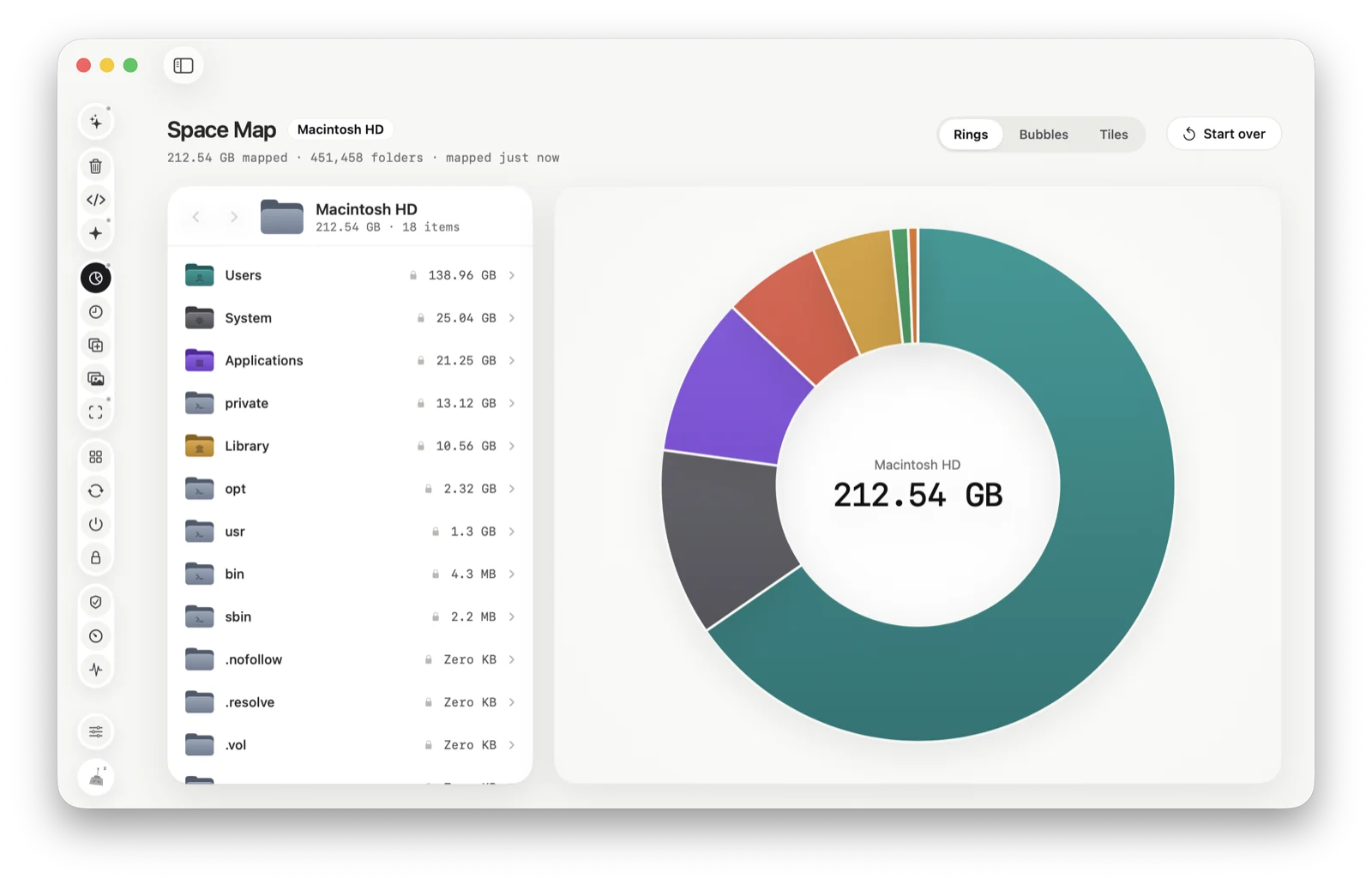
Space Map
Or let Tinymop map it
Space Map measures every folder and draws it to size, so you can see what’s using your space. Smart Scan then finds what’s safe to clear, with the reason next to each item.
Download for Macall
mapped