Start with the Storage panel
Open System Settings → General → Storage. Wait for the bar to finish, then look at the Recommendations above it:
- Store in iCloud: keeps recent files on your Mac and the rest in iCloud, downloading them when you open them. Needs enough iCloud storage.
- Optimise Storage: removes Apple TV films and shows you’ve already watched. You can download them again.
- Empty Trash Automatically: deletes items that have been in the Trash for 30 days.
Below the bar, each category has an i button. Applications lists apps by size and when you last opened them; Documents shows large files and downloads; iOS Files lists old iPhone backups. You can delete straight from these lists.
Twelve free ways that work
1. Empty the Trash
Obvious, but files in the Trash still use space until it’s emptied. Check the Trash in Photos too: Recently Deleted keeps photos for 30 days.
2. Clear out Downloads
Sort ~/Downloads by size. Installers (.dmg, .pkg), zip files and videos you’ve already watched are usually safe to delete.
3. Delete apps you don’t use
In the Storage panel’s Applications list, sort by Last Accessed. Apps you haven’t opened in a year are good candidates. Dragging an app to the Trash leaves its support files behind, so see how to uninstall Mac apps completely.
4. Remove old iPhone and iPad backups
Each backup can be 20 GB or more. In the Storage panel, click i next to iOS Files and delete backups for devices you no longer own.
5. Turn on Optimise Mac Storage for photos
In the Photos app, choose Photos → Settings → iCloud and select Optimise Mac Storage. Full-size originals stay in iCloud, and smaller versions stay on your Mac. Needs iCloud Photos.
6. Find duplicate and similar photos
Photos has a built-in Duplicates album in the sidebar for exact copies. Burst shots and near-identical photos take more work: see how to find duplicate photos on a Mac.
7. Clean up old screenshots and screen recordings
They pile up on the Desktop or in a Screenshots folder, and screen recordings can be gigabytes each. See where screenshots are saved on a Mac.
8. Shrink Messages attachments
In Messages → Settings → General, set Keep messages to 1 year. In the Storage panel, the Messages entry lists large attachments you can delete one by one.
9. Clear caches that have grown too big
Most caches are small, but browsers, chat apps and music apps can hold gigabytes. See Is it safe to delete ~/Library/Caches? and how to clear Safari’s cache.
10. Clear developer files
If you’ve ever installed Xcode, Docker or Homebrew, they can be holding tens of gigabytes. See Xcode DerivedData and simulators and Docker images. For Homebrew, brew cleanup removes old versions and downloads.
11. Find your biggest files
In Finder, press Command-F, set the search to This Mac, change Kind to Other… → File Size and set it to is greater than 1 GB. Old videos, disk images and virtual machines show up straight away. For a folder-by-folder look, see why is my Mac’s disk full?.
12. Restart
Restarting clears temporary files and swap, and lets macOS remove local Time Machine snapshots it no longer needs. It often frees a few gigabytes with no effort at all.
Free tools worth knowing
- Finder’s Calculate all sizes: in list view, press Command-J and tick it to see folder sizes.
- Terminal:
du -sh ~/* | sort -hlists your folders by size in seconds. - Free disk visualisers such as OmniDiskSweeper and GrandPerspective draw your disk so big folders stand out.
What not to do
- Don’t delete anything in
/System, or empty~/Library/Application Supportwholesale: apps keep your data there. - Don’t run “clean everything” scripts from the internet without reading every line.
- Don’t trust apps that claim your Mac is “at risk” or promise to make it “300% faster”. Freeing space helps when your disk is nearly full; it doesn’t make a healthy Mac faster.
When a paid app is worth it
Everything above is free and works. It just takes time, because the space is spread across dozens of places. A good cleaner earns its price by checking all of them at once, telling you why each item was found and what’s safe, and never deleting anything you didn’t choose.
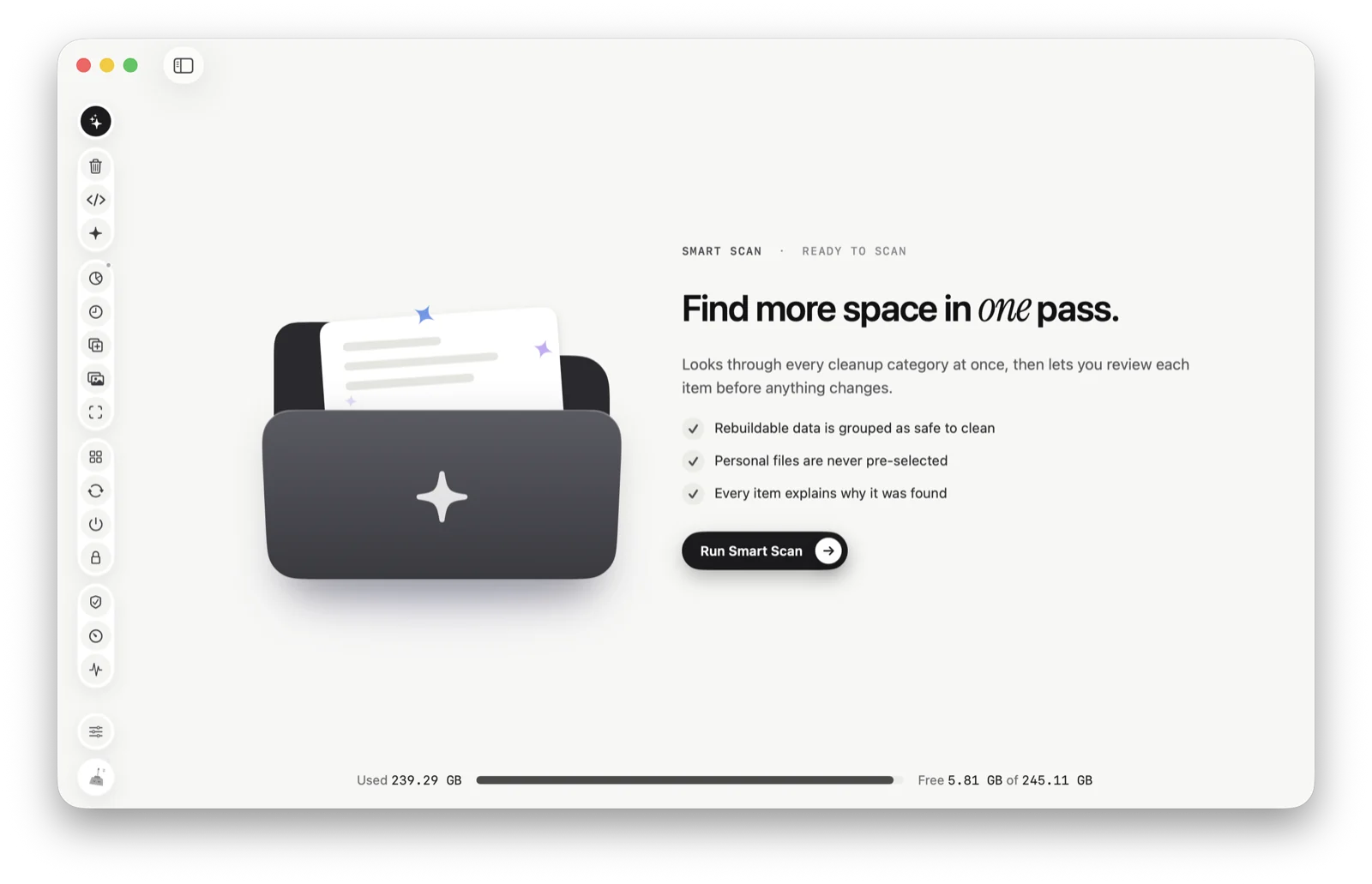
Or let Tinymop look
Smart Scan checks caches, logs, developer files, AI tool clutter, old screenshots, similar photos and more in one go, and shows the reason next to each item. Only things that rebuild themselves are ticked. Every tool is free for 7 days, then $14.99 once, with no subscription.
Download for Macfreed