That’s why it’s hard to clear by hand: there’s no single folder to open. But most of it falls into a few places you can check.
What’s usually in it
- Caches in
~/Library/Caches, which apps rebuild when they need them. - Logs in
~/Library/Logsand crash reports. - Local Time Machine snapshots, kept on your disk while your backup drive isn’t connected.
- Developer files such as Xcode’s DerivedData and simulators.
- App data in
~/Library/Application Support: some of it important, some of it old.
Shrink it by hand
- Restart your Mac. Temporary files and swap space are cleared on restart, and System Data often drops right away.
- Check for local snapshots. In Terminal,
tmutil listlocalsnapshots /lists them. macOS deletes them on its own when space runs low, but you can remove one withtmutil deletelocalsnapshotsfollowed by its date. - Clear caches you don’t need. See Is it safe to delete ~/Library/Caches? for what’s safe.
- Clear developer files if you use Xcode: How to delete Xcode DerivedData, old simulators and device support.
What not to touch
Don’t delete folders in /System or /Library you don’t recognise, and don’t empty ~/Library/Application Support wholesale: that’s where apps keep your settings and, sometimes, your data.
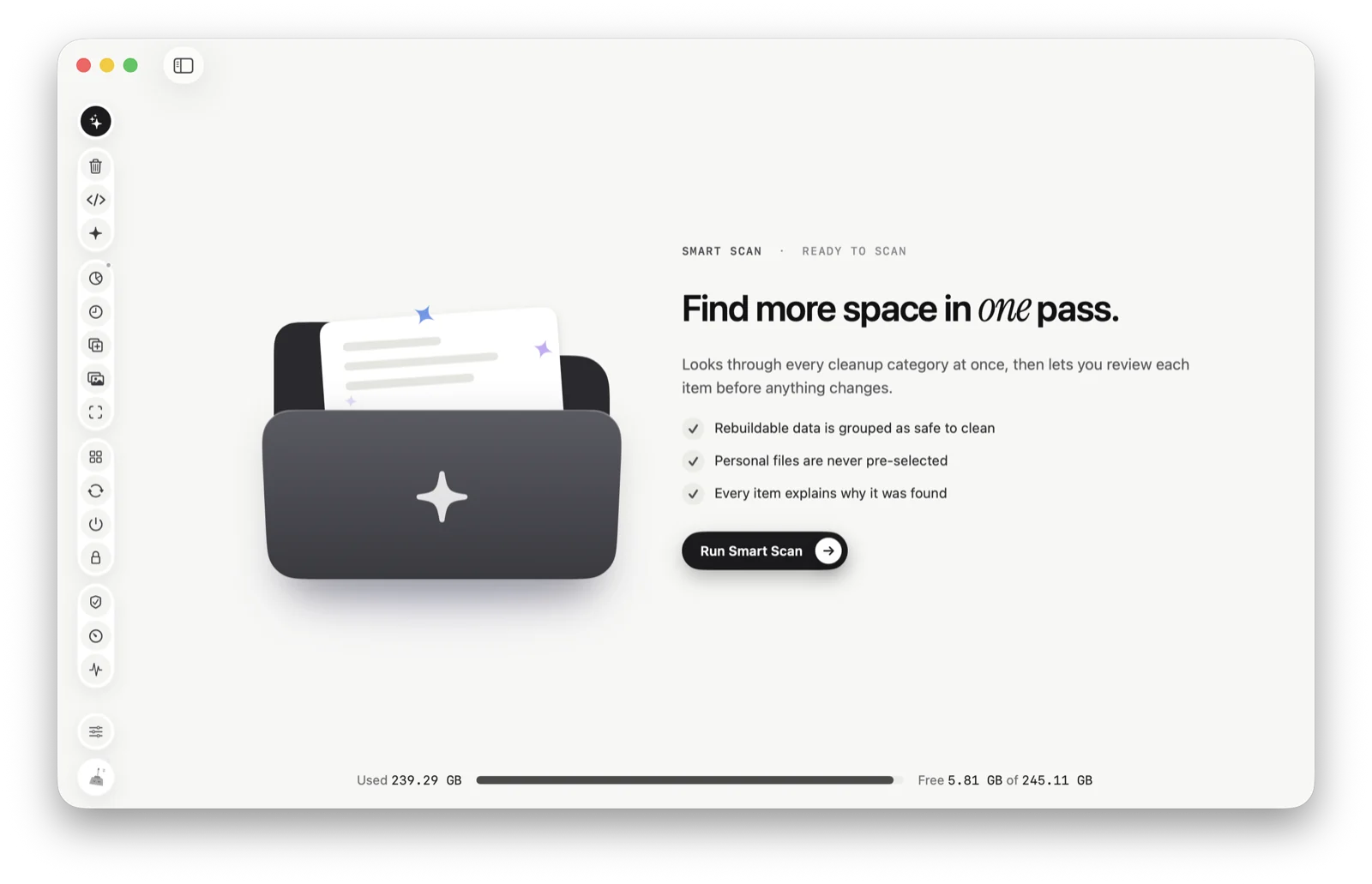
Smart Scan
Or let Tinymop look
Smart Scan runs every one of Tinymop’s clean-ups at once and groups what’s safe to clear, with the reason next to each item. Nothing is deleted until you choose.
Download for Mac7.5 GB
freed
freed