Where apps leave files
Look in these folders in ~/Library for a name that matches the app or its developer (often a reversed web address, like com.example.app):
Application SupportCachesPreferences(.plistfiles)ContainersandGroup ContainersHTTPStoragesSaved Application StateLaunchAgents(helpers that start with your Mac)
Uninstall by hand
- Quit the app.
- Check for its own uninstaller. Some apps ship one; it knows where everything is.
- Delete the app from Applications. For App Store apps, you can also hold an app’s icon in Launchpad and click the ×.
- Search your Library for the app’s name and its bundle ID, and move the matching items to the Trash. Be careful with names that match more than one app.
Files shared with other apps
Some files belong to a developer rather than one app, in Group Containers for example. If you still use another app from the same developer, leave those.
Applications
Or let Tinymop find them
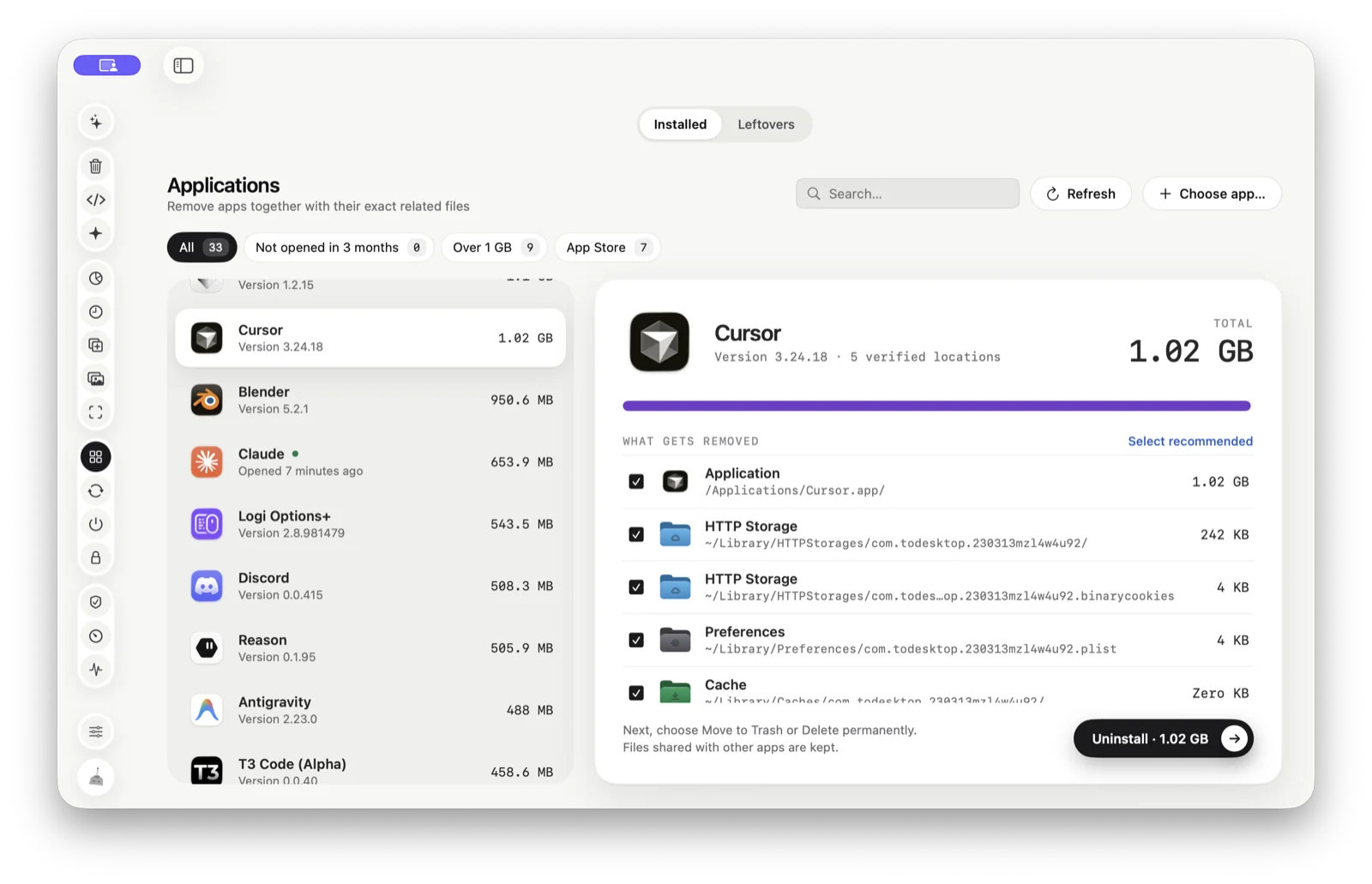
Applications lists every app with its real size, app and files together, and shows each file it will remove with its full path. Files shared with other apps are kept. Then you choose Move to Trash or Delete permanently.
Download for Mac






 Zoom
Zoomremoved