Here’s how to see what Docker is using, clear it safely, and stop it growing back.
Where Docker keeps everything
On a Mac, Docker runs inside a small Linux virtual machine. Images, containers, volumes and build cache are all stored in that machine’s disk image:
~/Library/Containers/com.docker.docker/Data/vms/0/data/Docker.rawThis file is “sparse”: Finder may show its maximum size, while it really uses less. To see what it actually takes on disk:
du -h ~/Library/Containers/com.docker.docker/Data/vms/0/data/Docker.rawDon’t delete Docker.raw by hand. It holds every image, container and volume, including databases you may still need.
See what’s using the space
Docker can break its usage down for you. With Docker Desktop running, open Terminal and run:
docker system dfIt lists images, containers, local volumes and build cache, with how much of each is reclaimable: space you can get back without removing anything in use. Add -v for a per-image and per-volume list.
Clear it, gentlest first
Run these one at a time and check docker system df between them.
1. Build cache
Often the biggest single item, and always safe: Docker rebuilds layers when it needs them.
docker builder prune2. Stopped containers
Removes containers that aren’t running. Their images stay.
docker container prune3. Dangling images
Removes untagged layers left over from rebuilds.
docker image prune4. All unused images
Removes every image not used by a container. You’ll download them again the next time you need them, which can take a while on a slow connection.
docker image prune -a5. Everything unused at once
Stopped containers, unused networks, unused images and build cache in one go:
docker system prune -aEach command asks you to confirm and then prints how much space it reclaimed.
Be careful with volumes
Volumes are where containers keep data that should survive a restart: databases, uploaded files, caches you configured on purpose. docker volume prune deletes every volume not attached to a container, and that can include the only copy of a local database. Check the list first:
docker volume lsRemove only the volumes you recognise and no longer need, by name, with docker volume rm followed by the name. docker system prune leaves volumes alone unless you add --volumes.
Get the space back on your Mac
After pruning, Docker Desktop gives the freed space back to macOS, though it can take a few minutes. If your free space hasn’t changed, quit and reopen Docker Desktop.
You can also cap how big Docker’s disk can grow in Docker Desktop → Settings → Resources, using the disk size setting. A lower limit stops Docker from slowly filling your Mac.
The reset button (last resort)
Docker Desktop’s Troubleshoot menu (the bug icon) has Clean / Purge data. It deletes every image, container and volume and starts fresh. Only use it if you’re sure nothing in Docker matters, because volumes go too.
Keep it from growing back
- Run
docker builder prunenow and then, especially after lots of builds. - Use
docker run --rmfor throwaway containers, so they remove themselves when they stop. - Pull only the image tags you need, and remove old versions when you upgrade.
- If you don’t use Docker any more, uninstall Docker Desktop properly: see how to uninstall Mac apps completely.
Docker isn’t the only developer tool that piles up files. See how to delete Xcode DerivedData, old simulators and device support for Xcode.
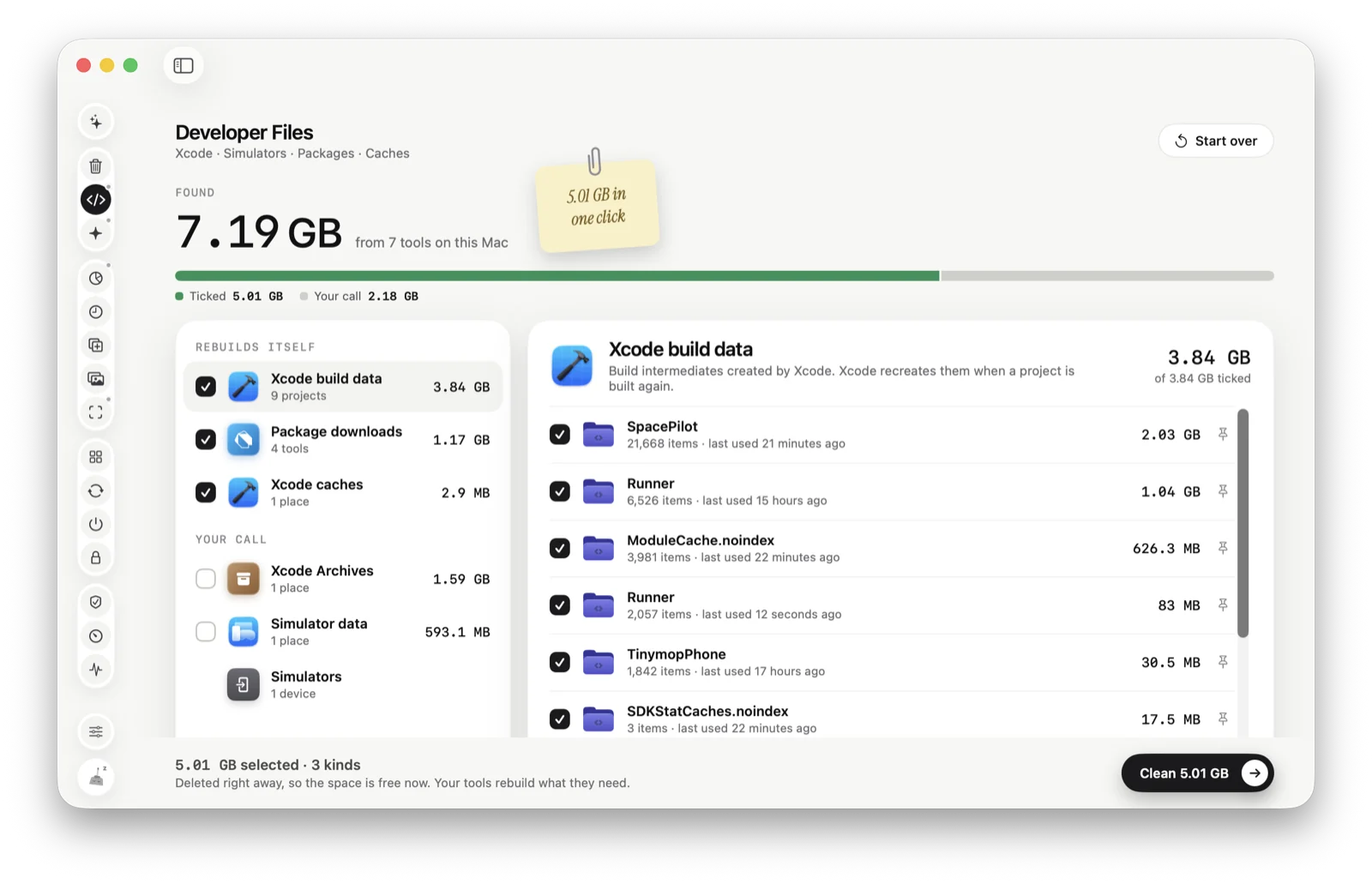
Or let Tinymop check
Developer Files finds Docker Desktop’s cache alongside Xcode build files, simulators and package caches, and Space Map shows how much room Docker’s data takes on your disk. Only things your tools rebuild are ticked, and Docker’s images and volumes are left for Docker to manage.
Download for Maccleared