Change where new ones go
Press Shift-Command-5, click Options, and pick a folder under Save to. A folder just for screenshots makes them much easier to clear later.
Find every screenshot on your Mac
Screenshots you’ve moved or renamed are still marked as screen captures, so Spotlight can find them all. In Finder, press Command-F, then search for:
kMDItemIsScreenCapture:1
Or in Terminal:
mdfind kMDItemIsScreenCapture:1Clear out old ones
In that Finder search, switch to list view, sort by Date Created, and select the old ones you don’t need. Move them to the Trash, then empty it.
Check before you delete: screenshots are often the only copy of something, like a receipt or a confirmation code.
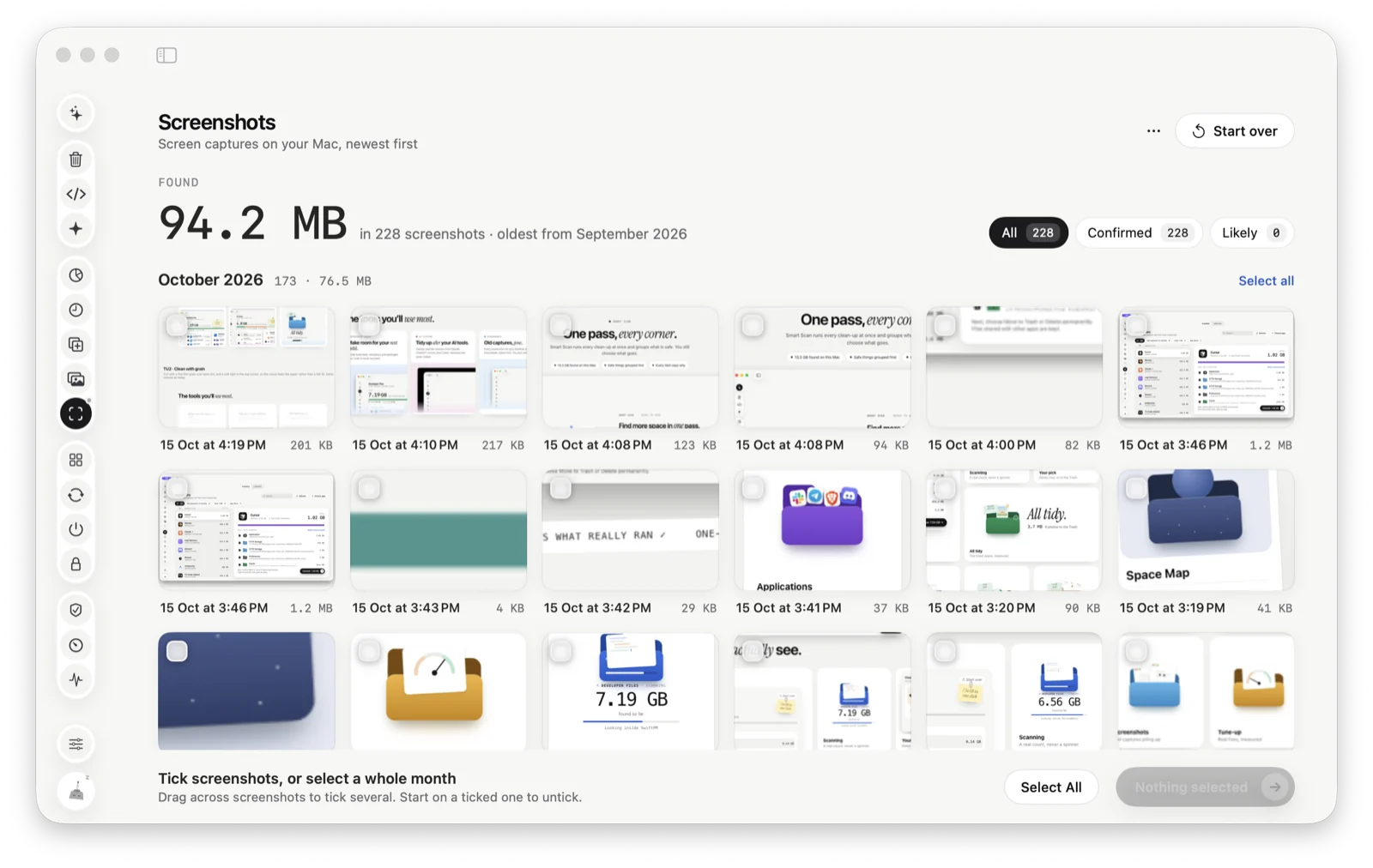
Or let Tinymop list them
Screenshots finds every screen capture on your Mac, newest first and grouped by month, with each one’s size. Tick single screenshots, drag across several, or select a whole month.
Download for Macis tidy