Here are three ways, from the gentlest to the most thorough.
1. Clear only the cache (stays signed in)
This removes cached files but keeps your history, cookies and logins.
- Open Safari and choose Safari → Settings.
- Click Advanced and turn on Show features for web developers.
- Close Settings. A Develop menu now appears in the menu bar.
- Choose Develop → Empty Caches, or press Option-Command-E.
That’s it. Pages load a bit slower the first time afterwards while Safari fetches them again. You can turn the developer features off again in Settings if you don’t want the Develop menu.
2. Clear one website’s data
If a single site is acting up, clear just its data:
- Choose Safari → Settings → Privacy.
- Click Manage Website Data….
- Search for the site, select it and click Remove.
This signs you out of that site only. Every other site stays as it was.
3. Clear history, cookies and cache together
This is the big reset. It also signs you out of websites.
- Choose History → Clear History….
- Pick a time range: the last hour, today, today and yesterday, or all history.
- Click Clear History.
Safari removes your browsing history, cookies and cached files for that range. If you use iCloud for Safari, history is cleared on your other devices signed in to the same account too.
Where Safari’s cache lives
If you want to see how big it is, Safari keeps its cache in these folders:
~/Library/Caches/com.apple.Safari~/Library/Containers/com.apple.Safari/Data/Library/Caches
To check their size in Terminal:
du -sh ~/Library/Caches/com.apple.Safari ~/Library/Containers/com.apple.Safari/Data/Library/Caches 2>/dev/nullmacOS protects Safari’s folders, so Terminal may say “Operation not permitted” unless it has Full Disk Access. Using Develop → Empty Caches is easier and safer than deleting these folders by hand.
Will clearing the cache delete my passwords or bookmarks?
No. Passwords are stored in the Passwords app and iCloud Keychain, and bookmarks, Reading List and open tabs are kept separately. Emptying the cache touches none of them. Clearing history (option 3) signs you out of sites, but your saved passwords stay, so signing back in is quick.
How often should I clear it?
Rarely. The cache exists to make browsing faster, and it refills as you browse. Clear it when a site looks broken after an update, when you’re short on space, or when the cache has grown to several gigabytes. Weekly clearing just makes Safari slower.
Other browsers
Chrome, Brave, Edge and Arc keep their own caches in ~/Library/Caches and ~/Library/Application Support. In each, look for Settings → Privacy → Delete browsing data and tick only cached images and files to keep your logins. For more on caches in general, see Is it safe to delete ~/Library/Caches?.
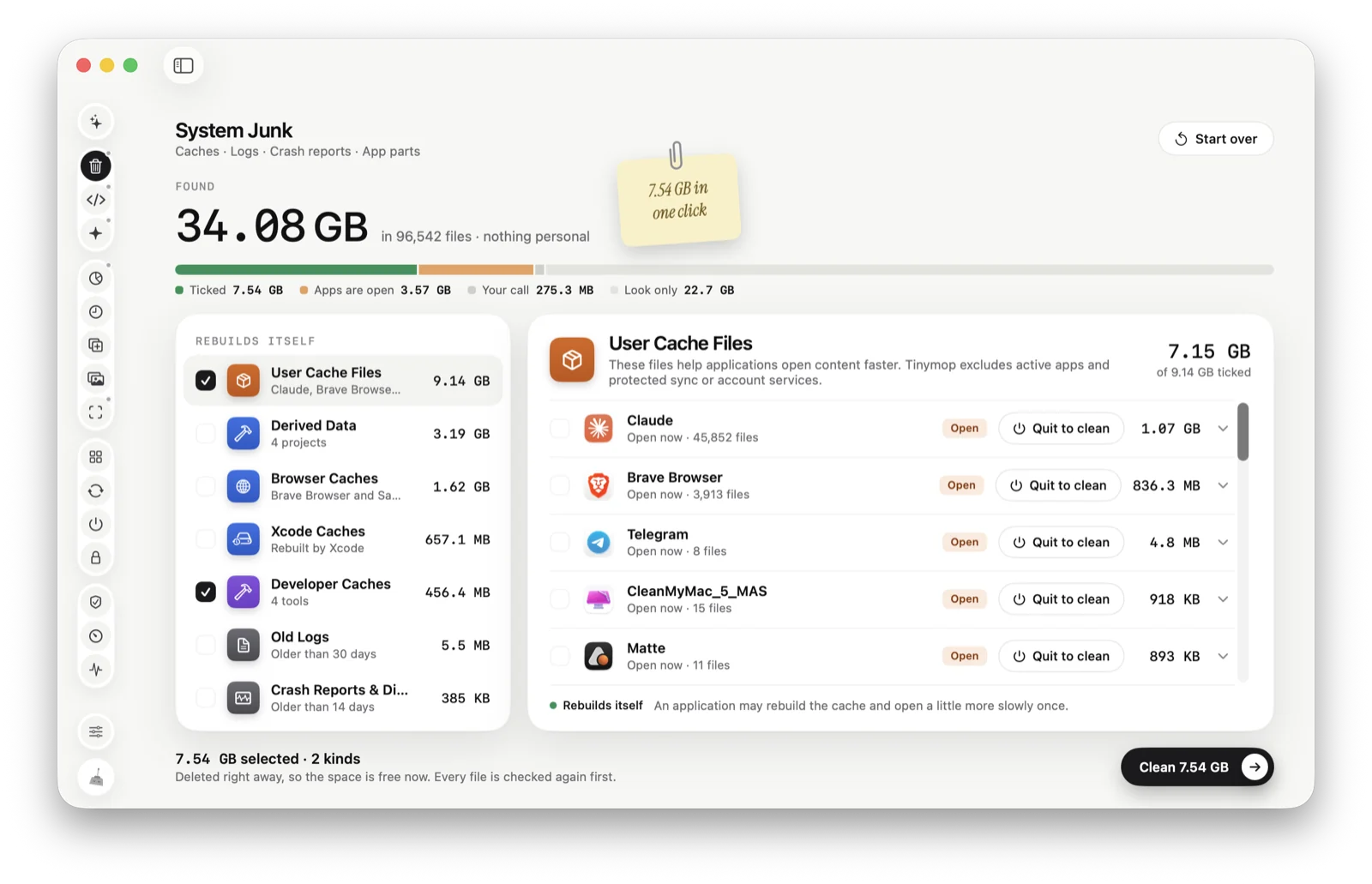
Or let Tinymop check
System Junk finds browser caches for Safari, Chrome, Brave, Firefox, Arc, Edge and Opera alongside your other caches and logs, with the size of each. Only caches are ticked, never your history, passwords or bookmarks, and an open browser is skipped unless you quit it.
Download for Macfreed