In Finder
- Open your home folder and switch to list view (Command-2).
- Press Command-J and tick Calculate all sizes.
- Sort by Size, then open the biggest folder and repeat.
It can take a while for big folders, and Finder doesn’t look inside your Library by default.
In Terminal
This lists the folders in your home folder by size, smallest first:
Terminal
du -sh ~/* 2>/dev/null | sort -hRun it again inside the biggest one to dig down. Add ~/Library/* to look inside your Library too.
The usual suspects
Downloads, Movies, Library (caches, app data, developer files) and phone backups. When the biggest folder is your Library, see What “System Data” on your Mac is.
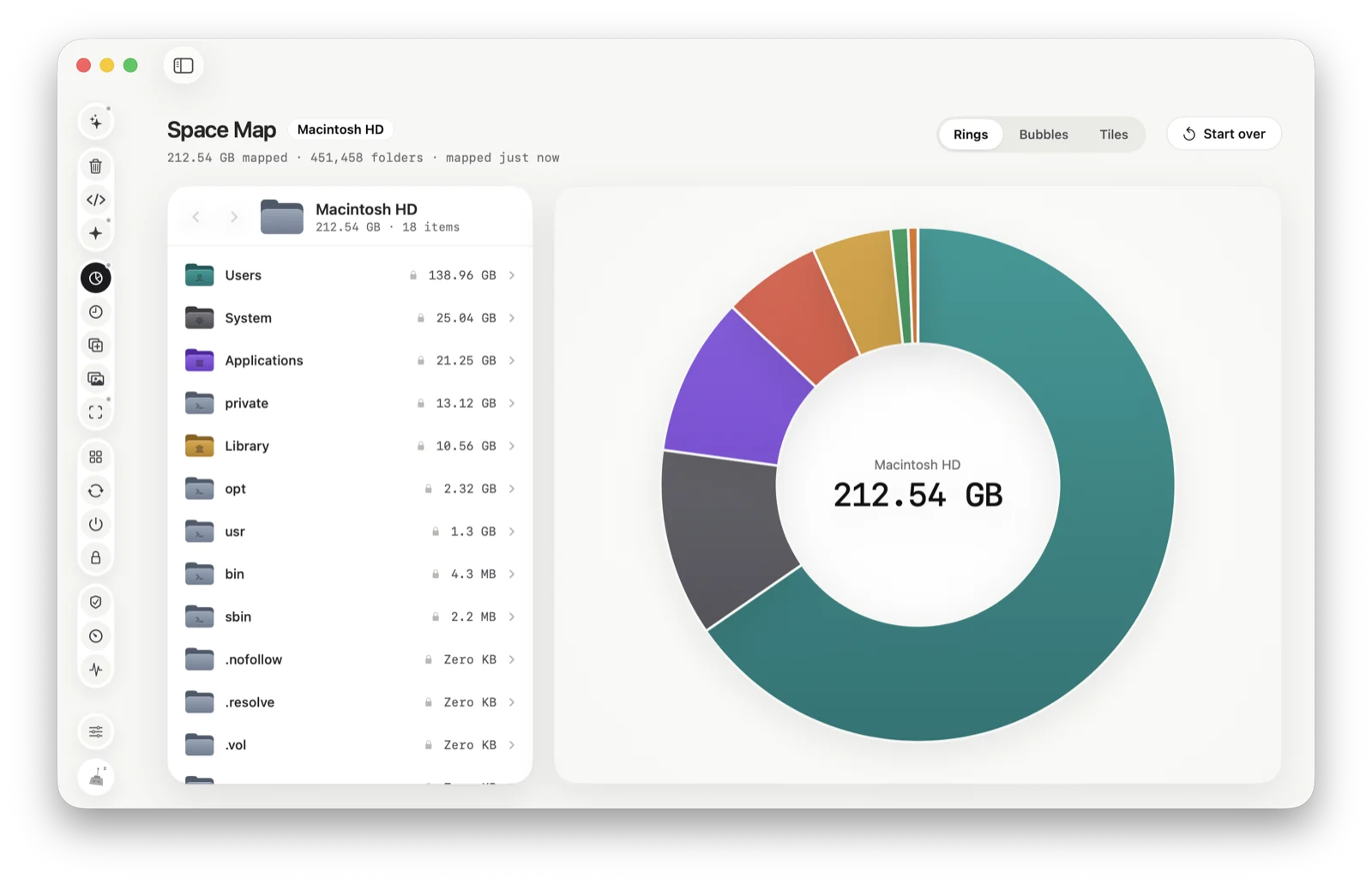
Space Map
Or let Tinymop map it
Space Map measures every folder and draws it to size, as rings, bubbles or tiles, so the big ones stand out straight away. Click one to go inside, or open it in Finder.
Download for Macall
mapped
mapped