Here’s how to clear it without losing anything you need.
Sort it so the big and old things show up
- Open Downloads in Finder and switch to List view (View → as List).
- Click the Size column header to sort biggest first.
- Or choose View → Show View Options and add Date Added, then sort by it to see the oldest downloads.
If Size shows dashes for folders, turn on Calculate all sizes in View Options.
Always safe to delete
- Installers you’ve already used:
.dmgdisk images and.pkgpackages. Once the app is in your Applications folder, the installer isn’t needed. You can download it again from the developer if you ever need to reinstall. - Zip files you’ve already unzipped: if the unzipped folder is next to it, the
.zipis a duplicate. - Duplicates: files ending in
(1)or(2)are usually the same thing downloaded twice. See how to find duplicate files.
Check before deleting
- Documents, tickets, receipts and statements. Move the ones you want to keep into Documents or iCloud Drive first.
- Photos and videos that came from messages or email and aren’t in your Photos library.
- Anything you can’t download again, like files someone sent you that have since expired.
Use the Trash as a safety net
Move things to the Trash rather than deleting them straight away, and empty it a week later. If you need something back, open the Trash and choose Put Back.
Keep it tidy
- Sort Downloads by Date Added once a month and clear everything older than a few weeks.
- Turn on Remove items from the Trash after 30 days in Finder → Settings → Advanced.
- In System Settings → General → Storage, the Recommendations list can show large files and downloads to review.
- Save important files straight into the folder they belong in, not Downloads.
Applications
Or let Tinymop check
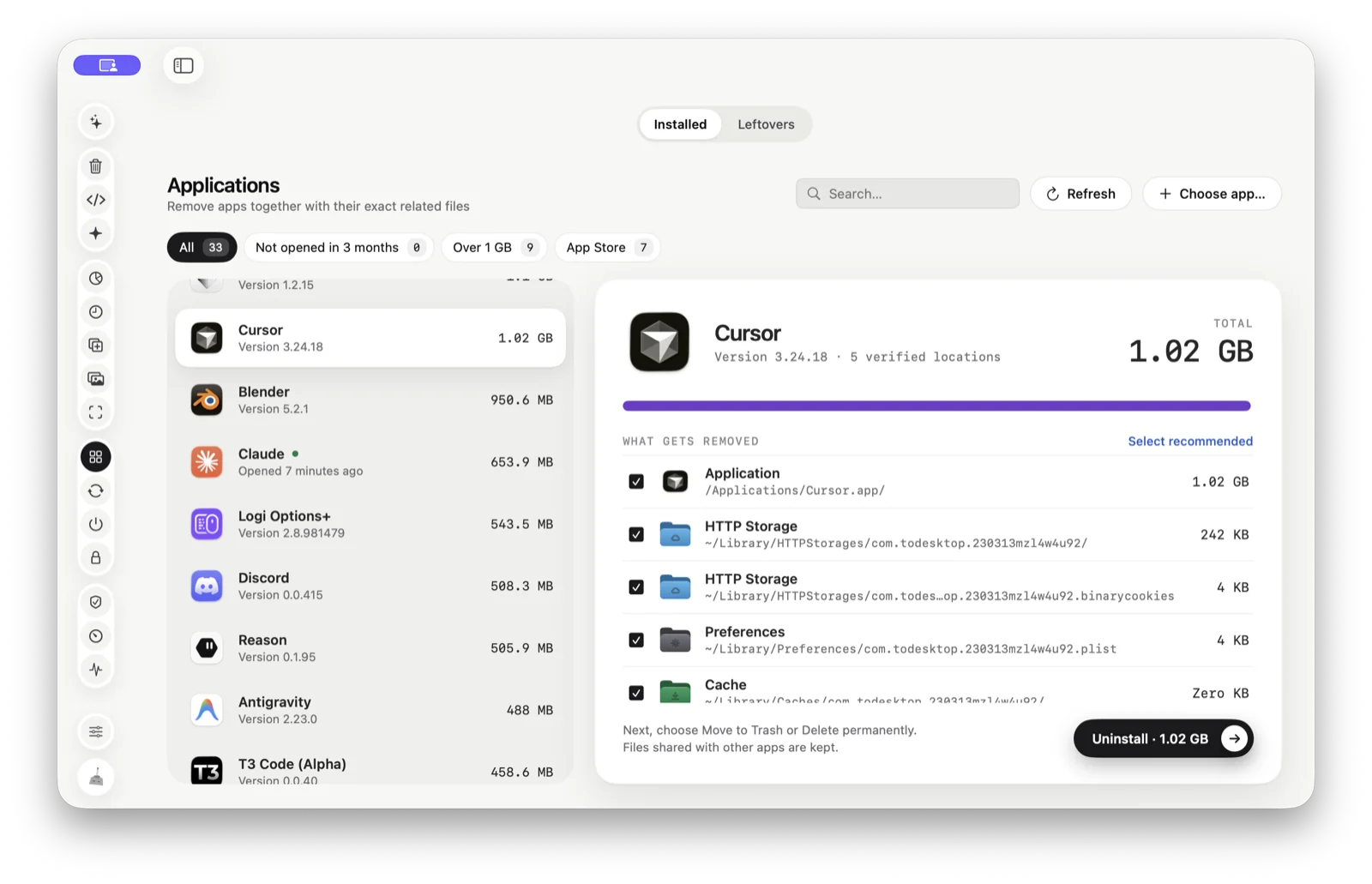
Applications has an Installers tab that finds disk images and installer packages in Downloads, Desktop and Documents, and marks the ones whose app is already installed. Large & Old lists big files you haven’t opened in a long time, with where each one is. Everything goes to the Trash, so you can put it back.
Download for Mac






 Zoom
removed