The good news: most of it is a cache. The original lives on the chat service’s servers, and the app downloads it again when you open the chat.
Telegram
Telegram has the best built-in tool.
- Open Telegram → Settings → Data and Storage → Storage Usage.
- Click Clear Cache to remove downloaded media, or pick which kinds to clear.
- Set Keep Media to a week or a month so it cleans up on its own.
Your messages stay; media downloads again when you open it. Secret chats are the exception: their media exists only on your devices.
Slack
- In Slack’s menu bar, choose Help → Troubleshooting → Clear Cache and Restart.
Your messages and files stay in Slack. Only the local copies go.
Discord
Discord has no clear-cache button. To clear it by hand, quit Discord completely, then move these folders to the Trash:
~/Library/Application Support/discord/Cache
~/Library/Application Support/discord/Code CacheLeave the rest of the discord folder alone: it holds your login and settings.
Microsoft Teams
Quit Teams, then in Finder choose Go → Go to Folder and open:
~/Library/Group Containers/UBF8T346G9.com.microsoft.teamsMicrosoft’s own advice for clearing the new Teams cache is to remove this folder and ~/Library/Containers/com.microsoft.teams2, then reopen Teams and sign in again.
WhatsApp on Mac has no clear-cache button. Its images are synced from your phone and download again when you open a chat. The simplest way to free space is to manage storage on your phone (Settings → Storage and Data → Manage Storage on iPhone), which deletes large files from the chat everywhere.
Zoom
Zoom’s cache is small, but local recordings are saved in ~/Documents/Zoom by default and can be huge. They’re your files, not a cache: watch or move them before deleting.
Messages: be careful
Apple’s Messages keeps attachments in ~/Library/Messages/Attachments. Unlike the apps above, these may be the only copy, unless Messages in iCloud is on. Don’t delete the folder by hand. Instead:
- Open System Settings → General → Storage → Messages and review large attachments, or
- Set Messages → Settings → General → Keep messages to 1 year or 30 days.
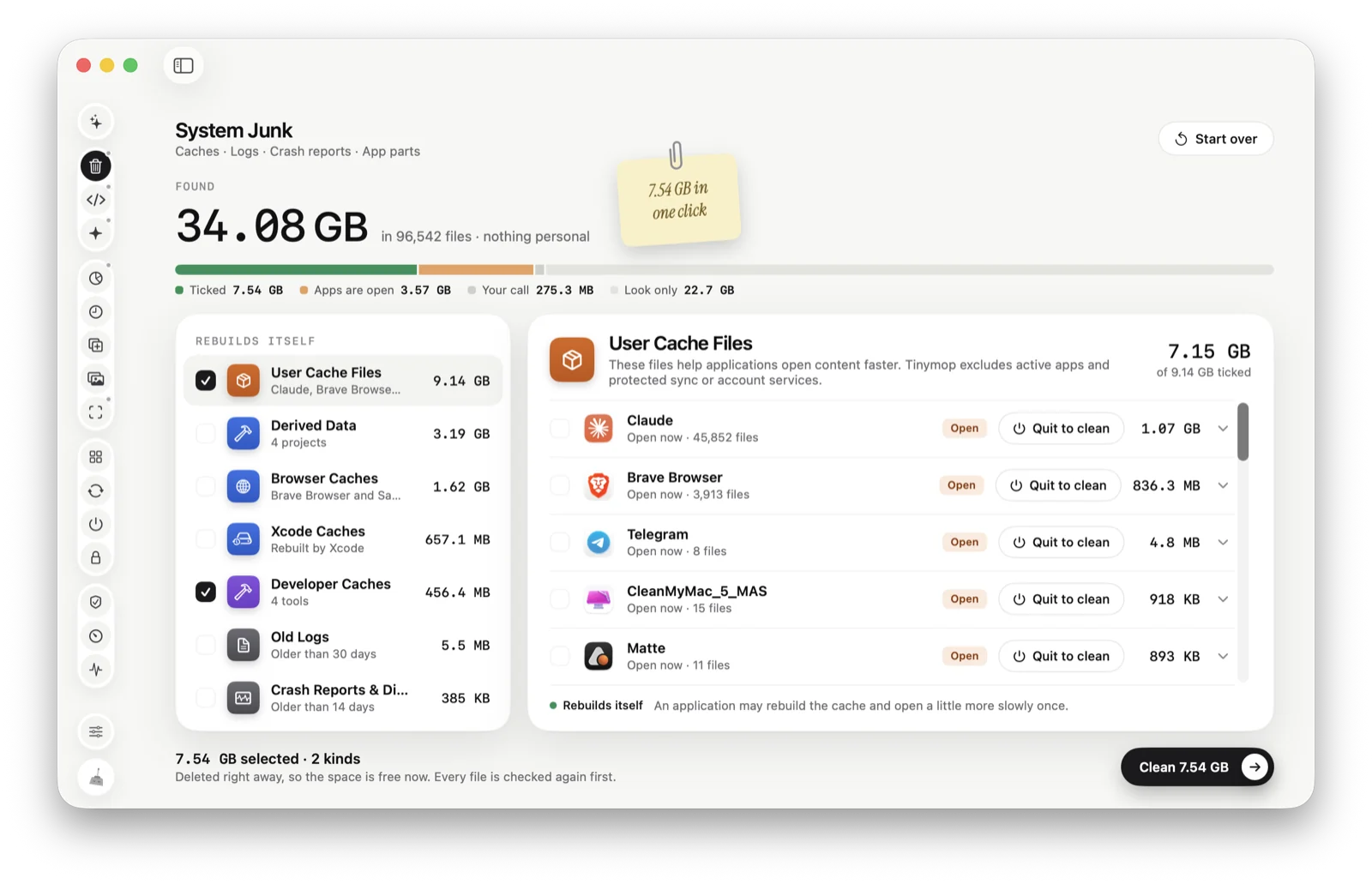
Or let Tinymop check
System Junk has a Chat apps group for Telegram, Discord, Slack, Microsoft Teams, Zoom and WhatsApp, showing what each one downloaded and how big it is. For Telegram, only media you haven’t opened in 30 days is ticked, and secret-chat media is never touched. Messages, Signal and WeChat aren’t included, because their files may exist only on your Mac.
Download for Macfreed