Clearing the cache is safe. It doesn’t touch your bookmarks, passwords or history unless you tick those too, and Chrome rebuilds it as you browse.
Clear the cache for every site
- In Chrome, press ⌘ Shift Delete, or choose Chrome → Delete Browsing Data… from the menu bar.
- Set Time range to All time.
- Tick Cached images and files only.
- Untick Browsing history and Cookies and other site data, unless you want those gone too.
- Click Delete data.
Sites may load a little slower the first time afterwards. That’s the cache filling up again.
What each option clears
- Cached images and files: copies of site files. Safe to clear; nothing you’d notice except a slower first load.
- Cookies and other site data: signs you out of almost every site, and clears site settings like dark mode or a chosen language.
- Browsing history: the list of pages you’ve visited and Chrome’s address bar suggestions.
- Passwords and other sign-in data and Autofill form data (under Advanced): your saved logins and addresses. Leave these unticked unless you mean to remove them.
If you’re signed in to Chrome with sync turned on, clearing history or passwords clears them on your other devices too. The cache is never synced.
Clear the cache for just one site
When one site is acting up, you don’t need to clear everything.
- Hard reload: press ⌘ Shift R to reload the page and fetch fresh copies of its files.
- Empty the site’s cache: open Developer Tools with ⌘ Option I, then click and hold the reload button and choose Empty Cache and Hard Reload.
- Delete the site’s data: click the icon to the left of the address, choose Site settings, then Delete data. This also signs you out of that site.
Where the cache lives on disk
Chrome keeps its main cache in your Library:
~/Library/Caches/Google/ChromeOther caches, like Code Cache and GPUCache, sit in each profile’s folder under ~/Library/Application Support/Google/Chrome. To see how big the main cache is:
du -sh ~/Library/Caches/Google/ChromeIf you delete these folders by hand, quit Chrome first, and don’t touch anything else in Application Support/Google/Chrome: that’s where your profiles, bookmarks and passwords live.
Several profiles
Each Chrome profile has its own cache. Clearing browsing data only clears the profile you’re using, so switch to each profile and repeat the steps if you use more than one.
Brave, Edge and other Chromium browsers
Brave, Microsoft Edge, Opera and Vivaldi are built on the same engine as Chrome, and ⌘ Shift Delete opens the same kind of window in each. The steps above work the same way. For Safari, see how to clear Safari’s cache.
Or let Tinymop check
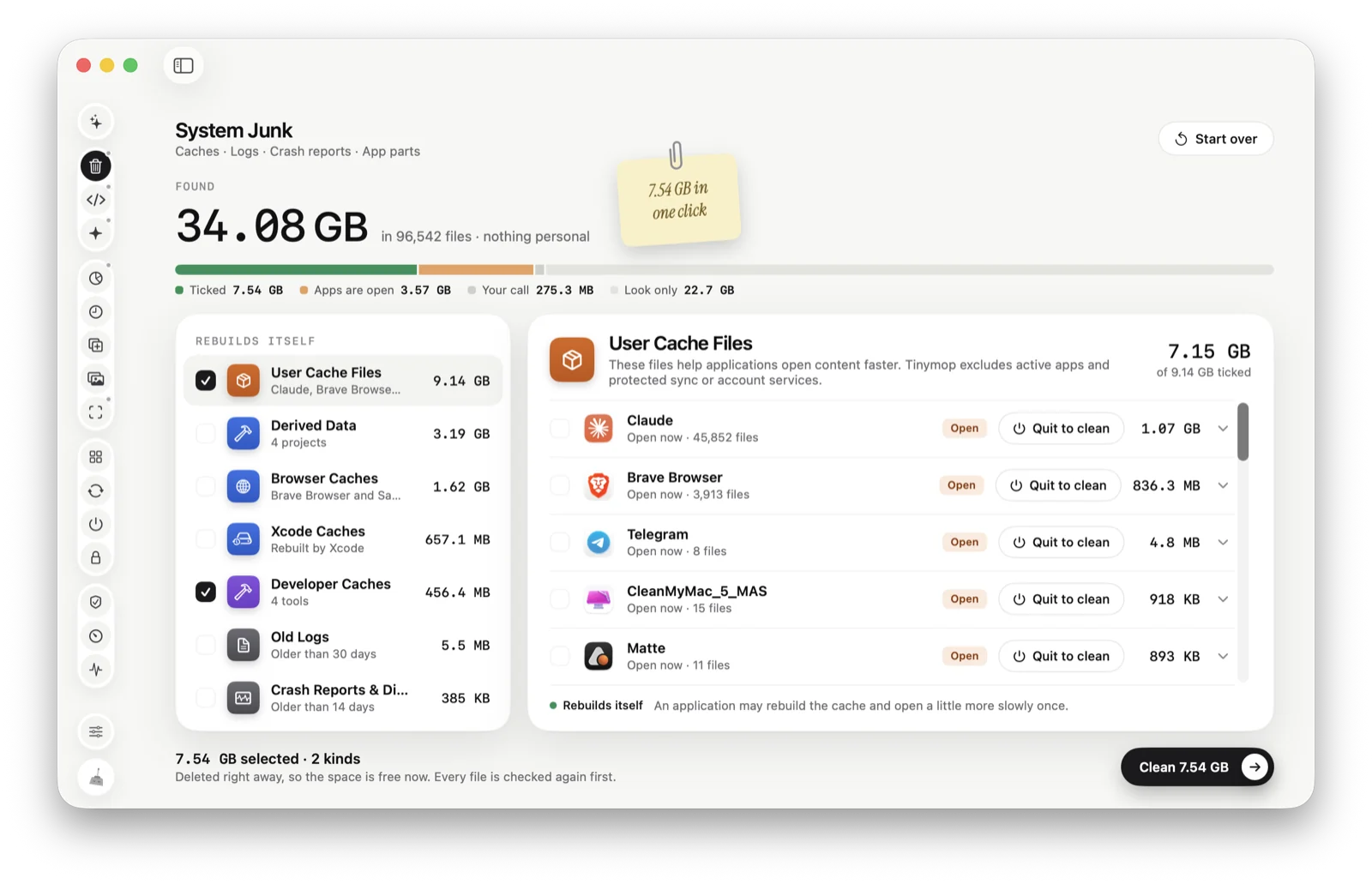
System Junk finds browser caches for Chrome, Safari, Brave, Firefox, Arc, Edge and Opera alongside your other caches and logs, with the size of each. Only caches are ticked, never your history, passwords or bookmarks, and an open browser is skipped unless you quit it.
Download for Macfreed