Here’s where they live, how to check their size, and how to remove the ones you don’t need.
Where Finder keeps backups
Device backups are stored in your Library:
~/Library/Application Support/MobileSync/BackupEach backup is a folder with a long random name, one per device. The folder names don’t tell you which phone is which, so it’s safest to manage them from Finder, which shows each device’s name and the date of its last backup.
Backups to iCloud don’t live on your Mac at all, so deleting local backups doesn’t touch them.
See how much space they take
- Open System Settings → General → Storage.
- Click the i next to iOS Files, if it’s listed.
- You’ll see each backup with its device name, size and date.
You can also check the whole folder in Terminal:
du -sh ~/Library/Application\ Support/MobileSync/BackupIf Terminal says “Operation not permitted”, it needs Full Disk Access (in System Settings → Privacy & Security) to look inside that folder.
Delete a backup from Finder
This is the safest way, because Finder shows you which device each backup belongs to.
- Connect any iPhone or iPad to your Mac (it doesn’t have to be the one whose backup you want to delete) and select it in the Finder sidebar.
- On the General tab, click Manage Backups…
- Pick the backup you want to remove. The list shows the device name and the date.
- Click Delete Backup and confirm.
You can also delete backups from the iOS Files list in Storage: select one and click Delete.
Before you delete one
- Keep the newest backup of any device you still use. It’s the one you’d restore from if your phone is lost or replaced.
- Encrypted backups are worth keeping. If the backup shows a lock icon, it also holds saved passwords, Wi-Fi settings and Health data, which an unencrypted backup or an iCloud backup may not.
- Archived backups (shown with a date in their name) are copies you chose to keep on purpose. Check that you really don’t need them.
- Backups of phones you no longer own can usually go, unless they hold photos or messages you never moved anywhere else.
Old software updates take space too
When you update or restore a device through Finder, macOS may keep the downloaded software file. These are listed under iOS Files in Storage too, and they’re safe to delete: Finder downloads a fresh copy if it ever needs one.
Stop backups from piling up
- If you back up to iCloud, you may not need local backups at all. In Finder, select your device and choose Back up your most important data on your iPhone to iCloud.
- Delete the old backup when you replace a phone, once the new one is set up.
- Look at iOS Files in Storage every few months.
Backups are just one part of System Data. See what System Data is for the rest.
Or let Tinymop map it
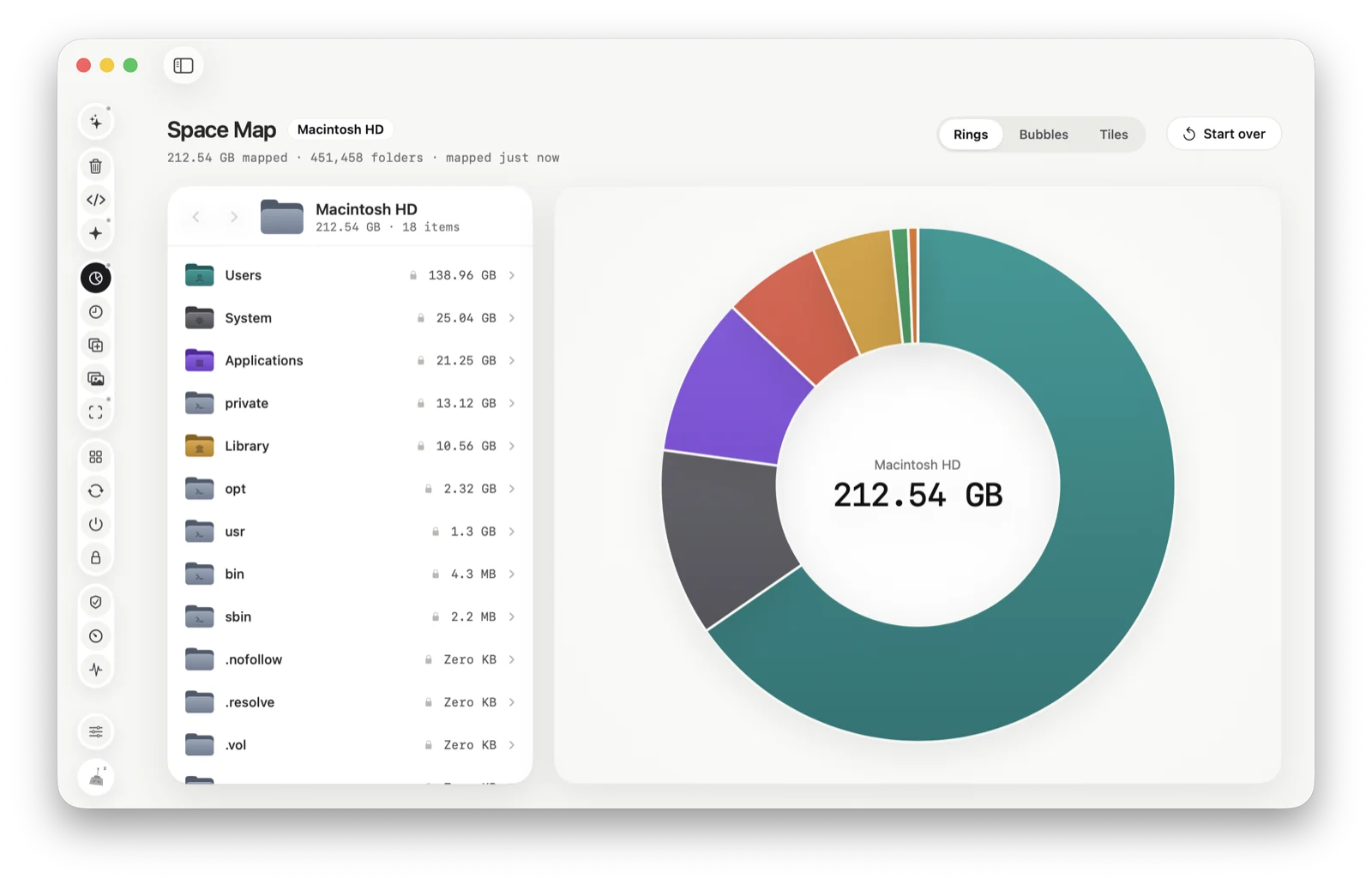
Space Map measures every folder on your disk and draws it to size, so a 60 GB backup folder stands out straight away. Click into it to see how big each backup is, or open it in Finder, then delete the ones you don’t need from Finder’s Manage Backups.
Download for Macmapped