Here’s where each tool keeps them and how to clear the ones you’ve stopped using.
Ollama
List your models with their sizes
ollama listDelete one
ollama rm llama3.1:70bUse the name exactly as ollama list shows it. The space is freed straight away.
Ollama keeps models in ~/.ollama/models. Don’t delete files inside it by hand: models share pieces, and ollama rm knows which ones are still in use.
LM Studio
- Open LM Studio and go to My Models (the folder icon in the sidebar).
- Each model is listed with its size.
- Click the … menu next to one and choose Delete.
LM Studio keeps models in ~/.lmstudio/models (older versions used ~/.cache/lm-studio/models). You can also see and change the folder in LM Studio’s settings.
Hugging Face
If you use Python libraries like transformers or diffusers, downloaded models are cached in:
~/.cache/huggingface/hubEach model is a folder named like models--org--model-name. To see sizes:
du -sh ~/.cache/huggingface/hub/* | sort -hDelete folders for models you no longer use. They’ll download again if your code asks for them.
Which models to keep
- Keep the one or two you actually use day to day.
- If you have several sizes of the same model (like 8B and 70B), keep the one your Mac runs comfortably.
- Older versions of a model you’ve upgraded from can usually go.
Move models to an external drive
If you want to keep a big collection, both tools can use another folder:
- Ollama: set the
OLLAMA_MODELSenvironment variable to a folder on the drive, then restart Ollama. - LM Studio: change the models folder in its settings.
Loading from an external SSD is a little slower but works fine.
AI apps also leave caches, logs and old versions, which are safe to clear. See how to clear Claude, Cursor, ChatGPT and Codex caches.
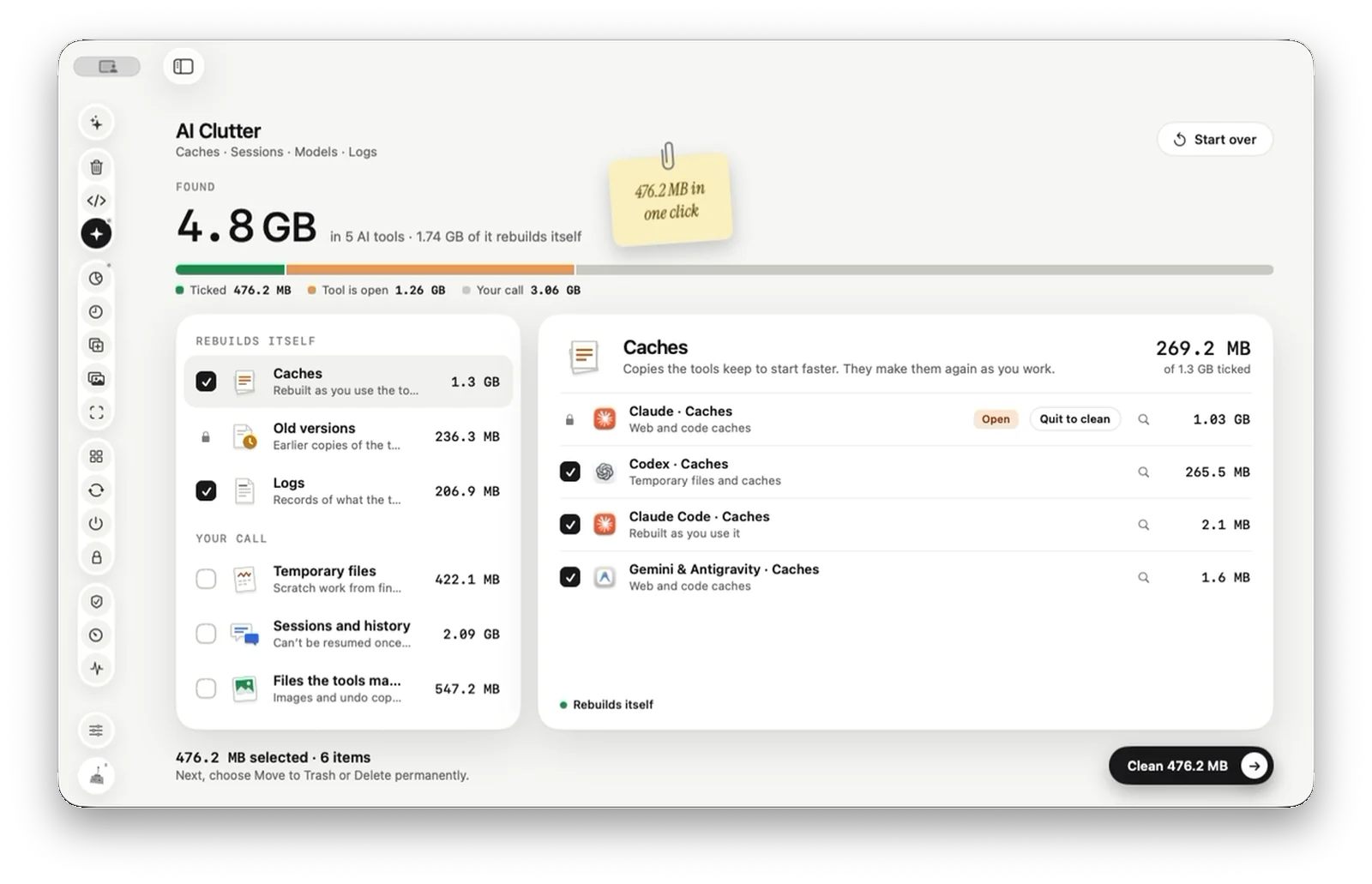
Or let Tinymop sort it
AI Clutter lists local models from Ollama, LM Studio and Hugging Face with their sizes, alongside caches and old versions of Claude, Cursor, Codex, ChatGPT and other AI tools. Models are in Your call: they’re never ticked for you, because they don’t come back on their own.
Download for Maccleared