The categories
- Applications: apps in your Applications folder.
- Documents: files in your home folder that don’t fit another category. Not just Word files: videos, disk images, zip files, downloads and big files anywhere.
- Photos: your Photos library.
- Music, TV, Books, Podcasts: media you’ve downloaded in those apps.
- Mail and Messages: downloaded mail and message attachments.
- iCloud Drive: files from iCloud Drive kept on this Mac.
- Developer: Xcode and its files, if you have them.
- iOS Files: iPhone and iPad backups and software updates.
- macOS: the system itself. You can’t shrink this.
- System Data: everything else. See what System Data is.
Why “Documents” is so big
Because it’s a catch-all for your own files. A few forgotten screen recordings, an old video project, a virtual machine or a folder of disk images can add tens of gigabytes. Click the i next to Documents to see:
- Large Files: everything over a certain size, biggest first.
- Downloads: what’s in your Downloads folder.
- Unsupported Apps: old apps that no longer run.
- File Browser: your folders, sized.
Select something and click Delete. Check before you do: these are your files, not caches.
Where did “Other” go?
Older versions of macOS had a grey Other category. In macOS Monterey and later it was split up: most of it became System Data, and some moved into the clearer categories above. If you see advice about clearing “Other”, it now means System Data.
The numbers don’t add up
The Storage bar is calculated, not measured live, and it can be off for a while after you delete things. It also counts some purgeable space as used. Give it a few minutes, or restart. For more on purgeable space, see what purgeable space is.
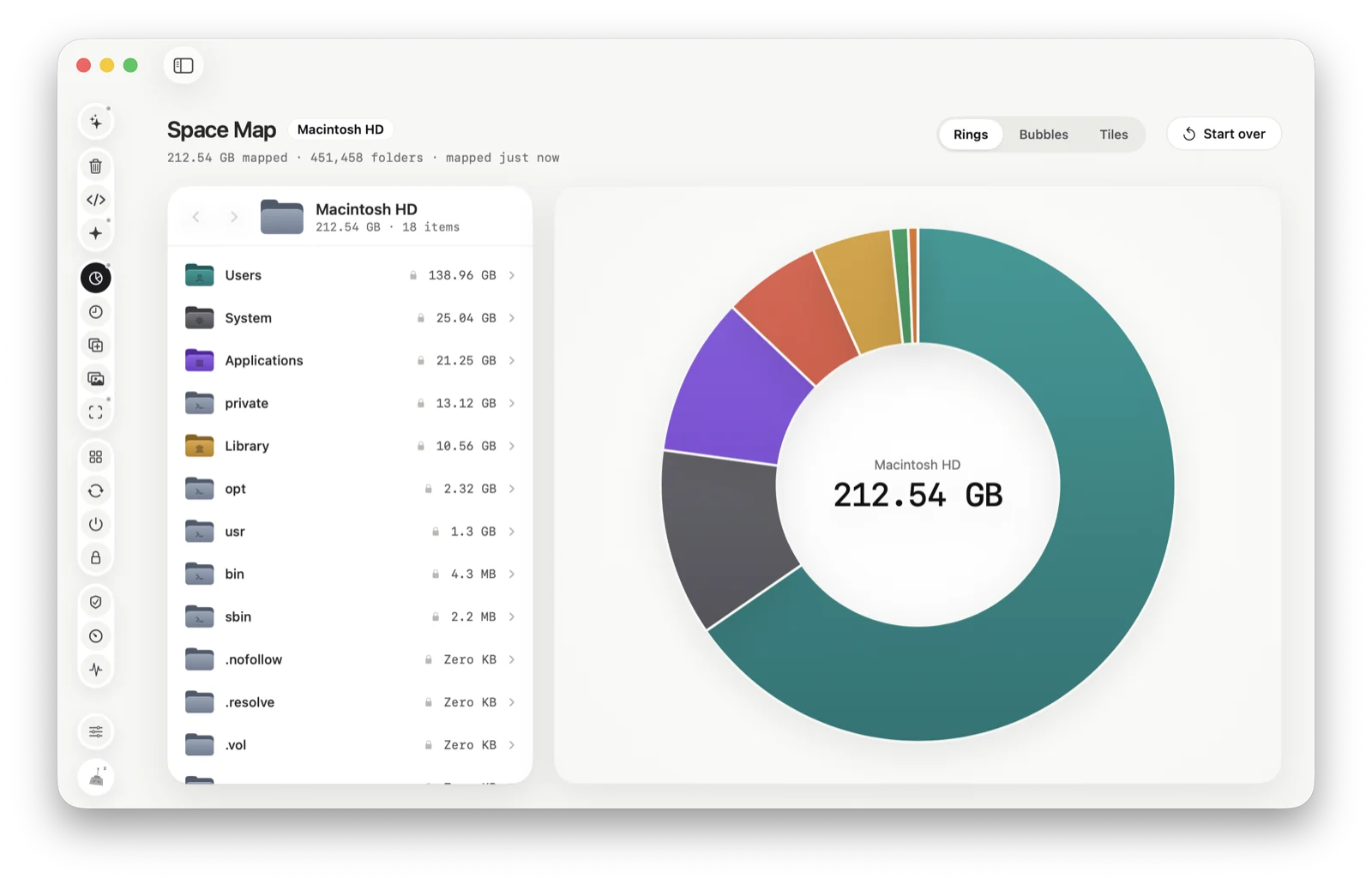
Or let Tinymop map it
Space Map measures every folder on your disk and draws it to size, so you can see exactly what’s inside Documents, System Data or any other folder, instead of a single coloured bar. Click into any folder or open it in Finder.
Download for Macmapped