The facts about DaisyDisk below are from its website in October 2026.
The short answer
- Choose DaisyDisk if you want a fast, beautiful map of your disk and you’re happy to decide yourself what every folder is and whether it can go.
- Choose Tinymop if you also want to be told what’s safe to clear and why: caches, build files, AI tool clutter and app leftovers, with only the safe things ticked.
What each one does
DaisyDisk is a disk analyser. It scans your disk and draws every folder as a segment of a ring, sized by how much it holds. You click into folders, preview files, and drag what you don’t need into a collector, then delete it in one go. It can scan as administrator to see restricted folders, break down System Data, find and remove local Time Machine snapshots, and scan cloud folders like Dropbox and Google Drive. DaisyDisk describes itself as manual on purpose: it doesn’t pick anything for you.
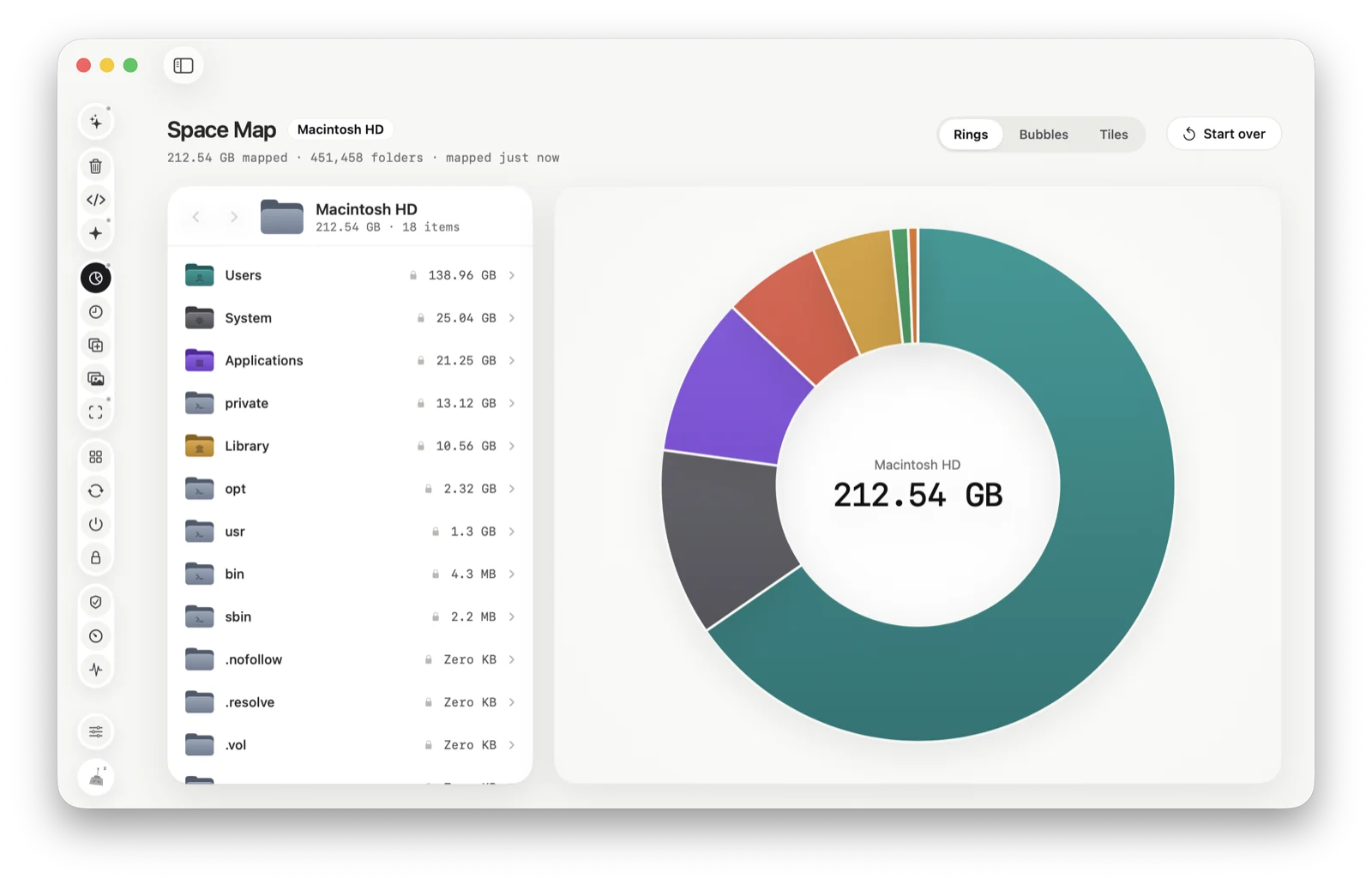
Tinymop has a disk map too, Space Map, which draws every folder to size as rings, bubbles or tiles. Around it are 13 other tools that know what the files are:
- System Junk for caches, logs and crash reports, including browser caches.
- Developer Files for Xcode build files, simulators, Docker Desktop and package caches like npm, Homebrew and pip.
- AI Clutter for caches and old versions from Claude, Cursor, Codex, ChatGPT and other AI tools, with your chats and models left unticked.
- Applications for uninstalling apps with their leftover files.
- Screenshots, Similar Photos, Large & Old files, Tune-up, and Smart Scan, which runs every clean-up at once.
The big difference: who decides what’s safe
With DaisyDisk, you see that ~/Library/Developer is 40 GB, and then it’s up to you to know which parts are safe to remove. That suits people who already know their Mac’s folders well.
With Tinymop, the same 40 GB is split into named items, like DerivedData, old simulators and device support, each with the reason it was found. Only things that rebuild themselves are ticked. Apps that are open are skipped, personal files go to the Trash, and after a clean-up every screen says what ran, what was skipped and why.
Price
DaisyDisk is $9.99 once, for up to 5 of your own Macs, with a 30-day money-back guarantee. It’s also on the Mac App Store.
Tinymop is $14.99 once, for 2 of your Macs, with a 7-day free trial of every tool and a 14-day money-back guarantee. No subscription.
Which Macs they run on
DaisyDisk runs on macOS 10.13 or later, on both Apple silicon and Intel Macs. If your Mac is older, it’s the one that will work.
Tinymop needs a Mac with Apple silicon (M1 or later) and macOS 15 or later.
Which one should you pick?
- You want the best-looking, fastest disk map and like deciding everything yourself: DaisyDisk.
- You have an Intel Mac or an older macOS: DaisyDisk.
- You want to know what’s safe to delete, not just what’s big: Tinymop.
- You’re a developer or use AI tools, and want those files sorted for you: Tinymop.
- You want caches, app leftovers, screenshots and similar photos handled too: Tinymop.
Both have a way to try before you commit, so the best test is your own Mac. If you’d rather do it by hand, see why your Mac’s disk is full.
Try Tinymop free
Space Map draws your disk to size, and Smart Scan tells you what in it is safe to clear, with the reason next to every item. Every tool is free for 7 days, then $14.99 once.
Download for Macfreed