We make Tinymop, a paid cleaner, so we’ve put it last and kept this list to apps we’d recommend anyway. Details are from each app’s own site in October 2026.
1. macOS Storage settings (built in)
System Settings → General → Storage shows what’s using your disk by category and has recommendations like Empty Trash Automatically and Store in iCloud. Click the i next to a category to see and delete items: big documents, old iPhone backups under iOS Files, and apps you rarely use.
Good for: a quick first look, with nothing to install. Missing: it won’t show what’s inside System Data, and it doesn’t clear caches.
Our guide to the best free ways to free up space on a Mac walks through it step by step.
2. OmniDiskSweeper: find what’s big
OmniDiskSweeper, from The Omni Group, lists every folder on your disk from largest to smallest. Click down into the big ones and move what you don’t need to the Trash.
Good for: finding the few huge things filling your disk. Missing: it doesn’t tell you what a folder is or whether it’s safe to delete.
See Tinymop vs OmniDiskSweeper for more.
3. GrandPerspective: see it as a map
GrandPerspective draws your disk as a tree map: every file is a rectangle sized by how big it is, so large files jump out. It’s free from its website, or $2.99 on the Mac App Store, which is the same app and supports the developer. The current version needs macOS 14 or later; older versions cover older systems.
Good for: spotting big files at a glance. Missing: like OmniDiskSweeper, it shows size, not safety.
4. AppCleaner: uninstall apps properly
AppCleaner, from FreeMacSoft, removes an app along with its preferences, caches and support files. Drop the app on its window, check the list, click Remove. Version 3.7 needs macOS 15 or later; older versions are available for older systems.
Good for: uninstalling apps without leaving files behind. Missing: it only does uninstalling.
See Tinymop vs AppCleaner for more.
5. OnyX: maintenance and cleaning
OnyX, from Titanium Software, is a free maintenance toolbox: it can clear caches, rebuild indexes and databases, run maintenance tasks and change hidden settings. There’s a separate version for each major macOS, so download the one that matches yours.
Good for: people who are comfortable with system settings and want lots of switches. Missing: it’s powerful but technical, and some options are easy to misuse. Read what each one does before you tick it.
6. Terminal, for developers
If you write code, a few commands clear more space than any free app: docker system prune, brew cleanup --prune=all, npm cache clean --force and deleting Xcode’s DerivedData. Our guides to package caches, Docker and Xcode have the exact commands.
Where free tools stop
Free tools are good at showing you what’s big. What they mostly don’t do is tell you what’s safe: which of the 60 GB in your Library will rebuild itself, which is an app’s settings, and which is the only copy of something you need. That gap is where people delete the wrong thing, or give up and delete nothing.
And if you’d rather pay a little
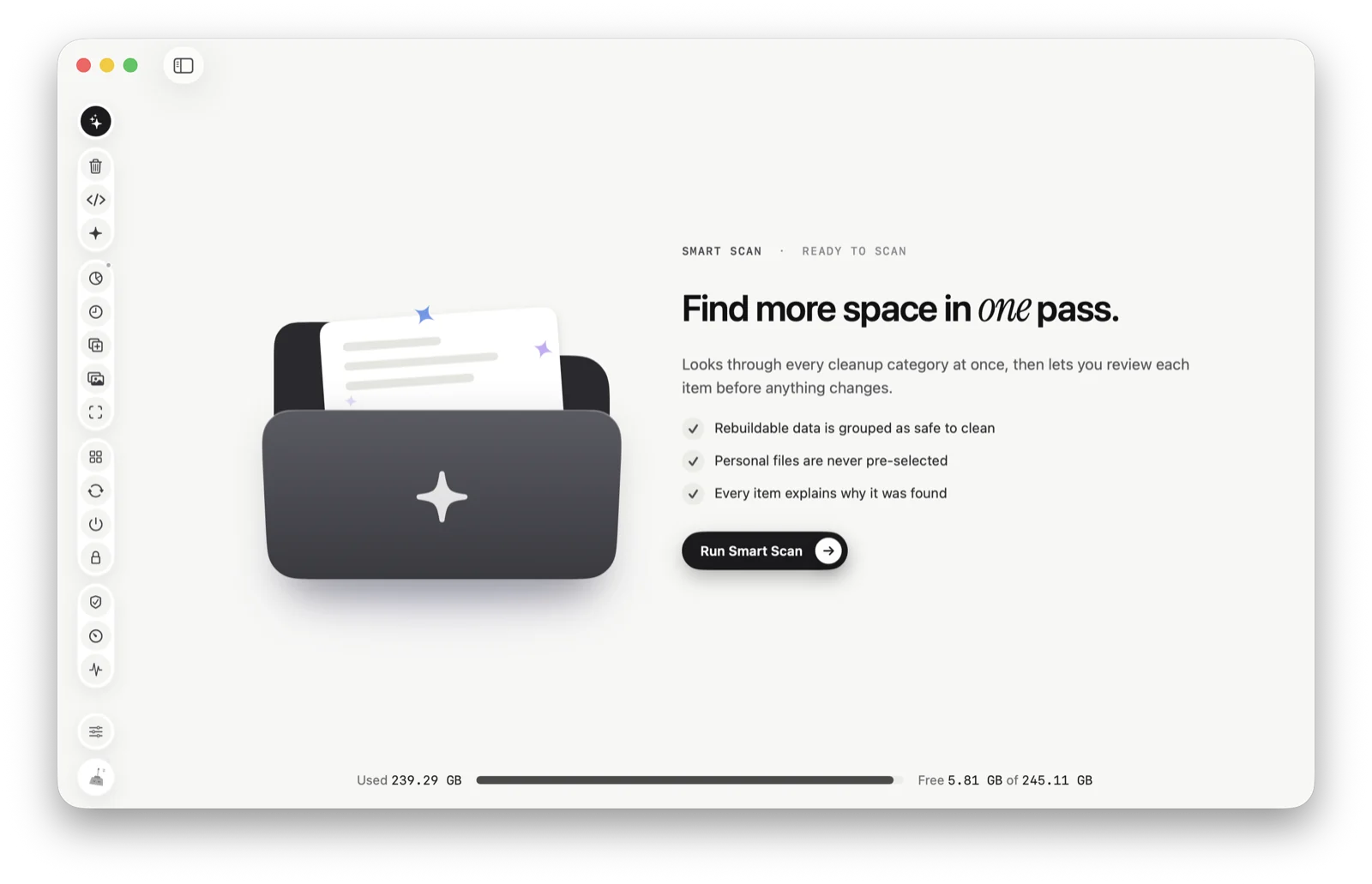
Tinymop is $14.99 once, with no subscription. It finds caches, developer files, AI tool clutter, app leftovers, old screenshots and similar photos, says why each item was found, and ticks only things that rebuild themselves. Every tool is free for 7 days, and it needs a Mac with Apple silicon and macOS 15 or later. For a side-by-side with the big paid option, see Tinymop vs CleanMyMac.
Download for Macfreed