We make Tinymop, so read this with that in mind. Below is what each app does well, where each one fits best, and what it costs. Prices and versions are from each app’s own site in October 2026.
The quick picks
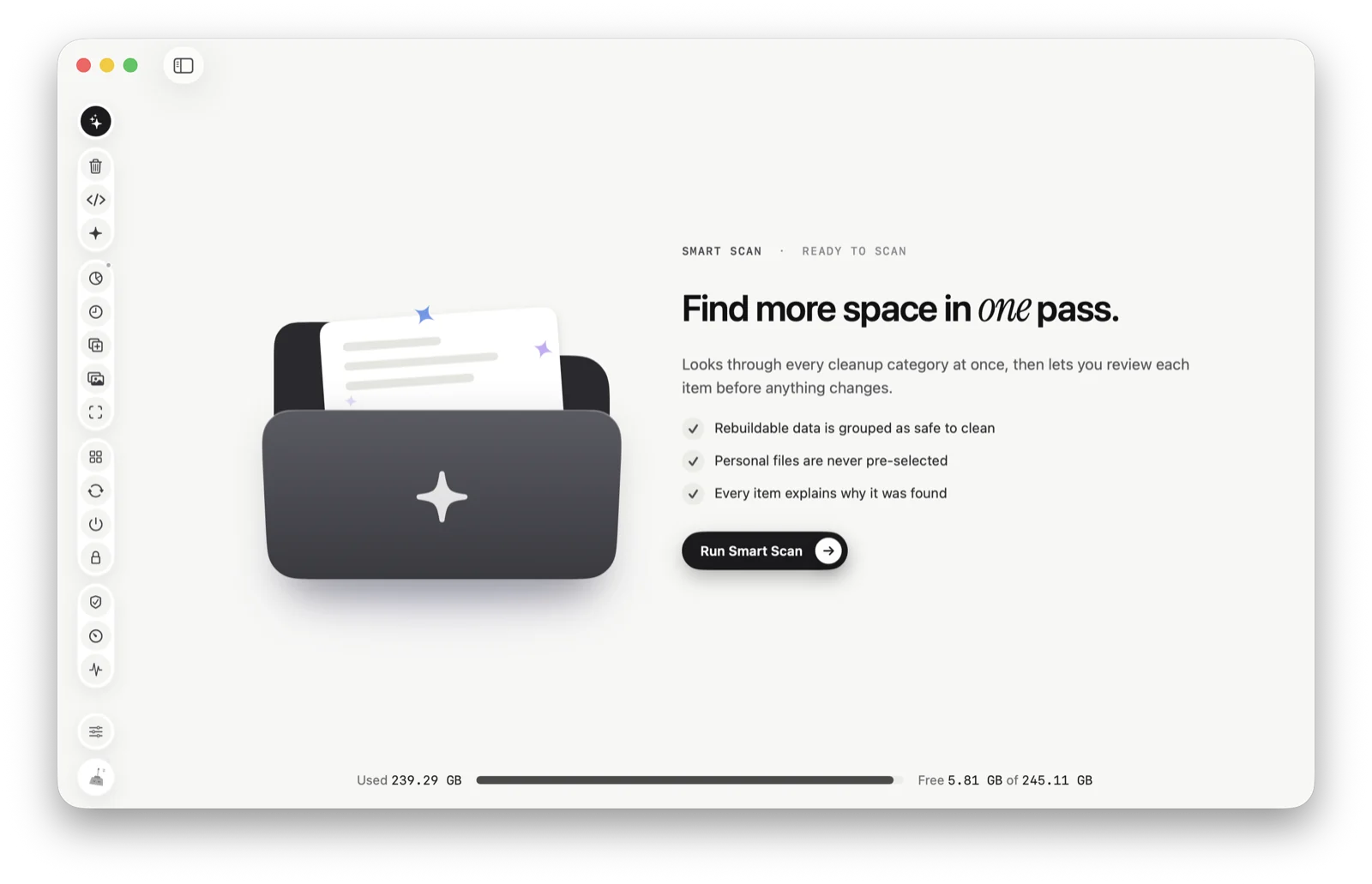
- To see what’s safe before anything goes: Tinymop. It finds caches, developer files, AI tool clutter, app leftovers, duplicates and old screenshots, explains every item, and ticks only what rebuilds itself. $14.99 once.
- Best if you also want malware scanning: CleanMyMac.
- Best-looking disk map: DaisyDisk.
- Best free disk tools: OmniDiskSweeper and GrandPerspective.
- Best free app uninstaller: AppCleaner.
- Best free toolbox for confident users: OnyX.
1. Tinymop
Tinymop has 14 tools, among them Smart Scan, System Junk, Developer Files, AI Clutter, Applications, Startup Items, Space Map, Duplicates, Similar Photos, Screenshots and Tune-up.
What sets it apart:
- It explains everything. Every item says why it was found, so you’re never deleting a folder you don’t recognise.
- It’s safe by default. Only things that rebuild themselves are ticked. Nothing personal is pre-selected, apps that are open are skipped, and personal files go to the Trash.
- It shows what really happened. After a clean-up, every screen lists what ran, what was skipped and why, measured before and after. No scary warnings, no made-up speed scores.
- It goes deepest on modern clutter. Xcode, simulators, Docker, npm, Homebrew and pip caches, and caches and old versions of AI apps like Claude, Cursor and Codex, with your chats and models left alone.
- It’s fairly priced. $14.99 once, for 2 of your Macs. No subscription.
Price: $14.99 once, with a 7-day free trial and a 14-day money-back guarantee. Needs: a Mac with Apple silicon and macOS 15 or later. Not for you if: you have an Intel Mac, or you want an antivirus in the same app (Tinymop checks Apple’s own protection is on, but doesn’t scan for malware).
2. CleanMyMac
CleanMyMac, from MacPaw, is the best-known Mac cleaner. It clears system junk, scans for malware, removes apps with their leftovers, finds duplicates, similar photos and large files, manages memory and CPU load, updates apps, and looks at cloud storage. Its Smart Care runs most of that in one go.
Price: sold mainly as a yearly subscription, from about $39.95 a year for one Mac on MacPaw’s store; it’s also in Setapp and the Mac App Store. Needs: macOS 11 or later. Best for: people who want one app that does a bit of everything, including malware scanning. Less good for: people who want to pay once, or see exactly why each file was picked.
3. DaisyDisk
DaisyDisk scans your disk and draws it as rings, so the big folders stand out. You drag what you don’t need into a collector and delete it in one go. It can also break down System Data and remove local Time Machine snapshots.
Price: $9.99 once, for up to 5 of your Macs. Needs: macOS 10.13 or later, Apple silicon or Intel. Best for: people who know their Mac’s folders and want a fast, beautiful map. Less good for: knowing what’s safe to delete: it shows size, and leaves the judgement to you.
4. OmniDiskSweeper
OmniDiskSweeper, from The Omni Group, lists every folder from largest to smallest. Click down, find the big thing, move it to the Trash.
Price: free. Best for: a quick, free hunt for the few huge things on your disk. Less good for: anything beyond that; it doesn’t say what a folder is.
5. GrandPerspective
GrandPerspective draws your disk as a tree map, where every file is a rectangle sized by how big it is.
Price: free from its website, or $2.99 on the Mac App Store (the same app). Needs: macOS 14 or later for the current version. Best for: spotting big files at a glance, for free.
6. AppCleaner
AppCleaner, from FreeMacSoft, removes an app along with its preferences, caches and support files. Drop the app on its window, check the list, click Remove.
Price: free (donations welcome). Needs: macOS 15 or later for version 3.7; older versions cover older systems. Best for: uninstalling apps properly, and nothing else.
7. OnyX
OnyX, from Titanium Software, is a free maintenance toolbox: it clears caches, rebuilds indexes, runs maintenance scripts and changes hidden settings. Each major macOS has its own version.
Price: free (donations welcome). Best for: confident users who want lots of switches. Less good for: beginners; some options are easy to misuse.
Do you need a cleaner at all?
Not always. macOS’s own Storage settings and a few Terminal commands cover a lot, and our guide to the best free ways to free up space shows how. A cleaner earns its place when you’re short on space often, or when you don’t know which of the big folders are safe to touch.
Try Tinymop free
Smart Scan checks your whole Mac in one go and shows the reason next to every item. Every tool is free for 7 days, then $14.99 once.
Download for Macfreed