The facts about GrandPerspective below are from its website in October 2026, when the current version was 3.8.1.
The short answer
- Choose GrandPerspective if you want a free, detailed picture of what’s big, and you know what’s safe to delete.
- Choose Tinymop if you also want to be told what’s safe and why, with caches, developer files and app leftovers found for you.
What each one shows
GrandPerspective draws a tree map: files in the same folder sit together, and big files show up as big blocks. You can filter, colour by type or folder, preview with Quick Look, reveal in Finder and delete from the view. It’s precise and fast, and a little technical to read at first.
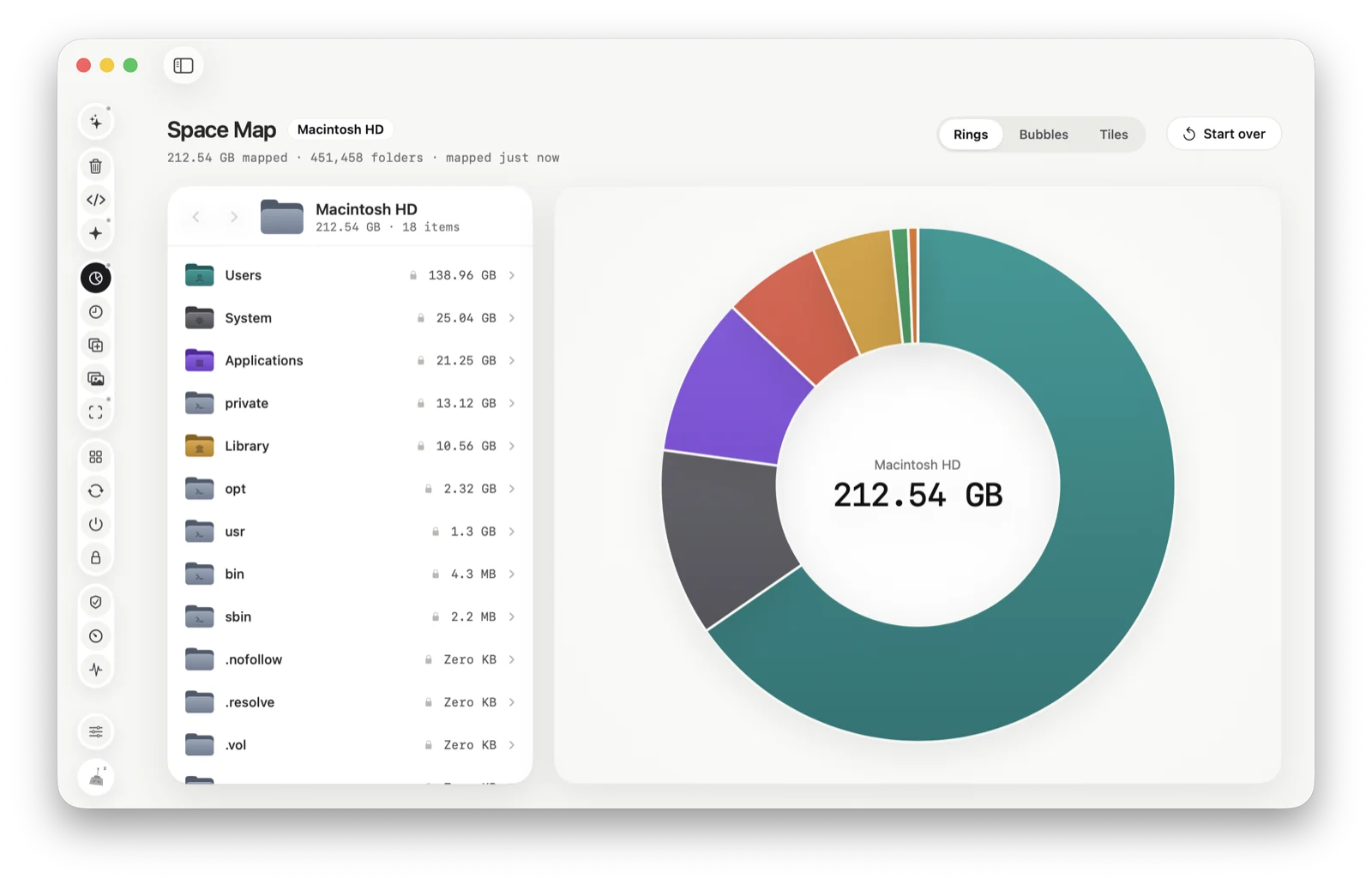
Tinymop’s Space Map measures every folder and draws it to size as rings, bubbles or tiles. Click one to go inside or open it in Finder. Around it are 13 other tools that know what files are: System Junk, Developer Files, AI Clutter, Applications, Large & Old files, Duplicates, Similar Photos, Screenshots and more. Each item says why it was found, and only things that rebuild themselves are ticked.
Price and Macs
GrandPerspective is free from its website, or $2.99 on the Mac App Store, which is the same app and supports its developer. The current version needs macOS 14 or later, on Apple silicon or Intel; older versions cover older systems.
Tinymop is $14.99 once, for 2 of your Macs, with a 7-day free trial and a 14-day money-back guarantee. It needs a Mac with Apple silicon and macOS 15 or later.
Which one should you pick?
- You want free and like reading a detailed map: GrandPerspective.
- You have an Intel Mac or an older macOS: GrandPerspective.
- You want to know what’s safe to delete, not just what’s big: Tinymop.
- You’re a developer or use AI tools: Tinymop.
For other disk maps, see Tinymop vs DaisyDisk and Tinymop vs OmniDiskSweeper.
Try Tinymop free
Space Map draws your disk to size, and Smart Scan tells you what in it is safe to clear. Every tool is free for 7 days, then $14.99 once.
Download for Macfreed